A Korean widget that shows you a word every time you pick up your phone
Hanguljo’s widgets bring back the Korean words and grammar you have already studied, with romanization and meaning, on your Home Screen and Lock Screen. A large Quiz widget even lets you answer a review question without opening the app.
Updated
Key facts
- Widgets: Hanguljo · Today (small and medium), Hanguljo Lock Screen (rectangular and inline) and Hanguljo Quiz (large). They show items from your own reviews, need iOS 17 or later and are part of the free plan.
- What it is: Hanguljo: Learn Korean TOPIK on the App Store, a Korean learning app from Hangul to TOPIK 6.
- Devices: iPhone and iPad with iOS 16 or later; the widgets need iOS 17 or later. There is no Android version at the moment.
- Price: Free to download. Premium is $5.99 a month, $39.99 a year or $149.99 once on the US App Store (prices vary by country), and one Premium account also unlocks Kanjijo and Hanzijo.
- Free plan: Free users get one new lesson a day, daily reviews, the widgets, the camera scanner, lessons from a pasted video link, the first three conversations and the first two dictation lessons of each level.
- Content: 439 lessons, 6,718 words, 150 grammar points, 15 particles, 1,432 Hanja, 164 conversations and 96 dictation lessons, TOPIK 1 to 6.
- Exam: Not affiliated with the TOPIK organisers; official information is at topik.go.kr.
Facts checked on against the app’s content and its App Store listing (app version 2.0.10).
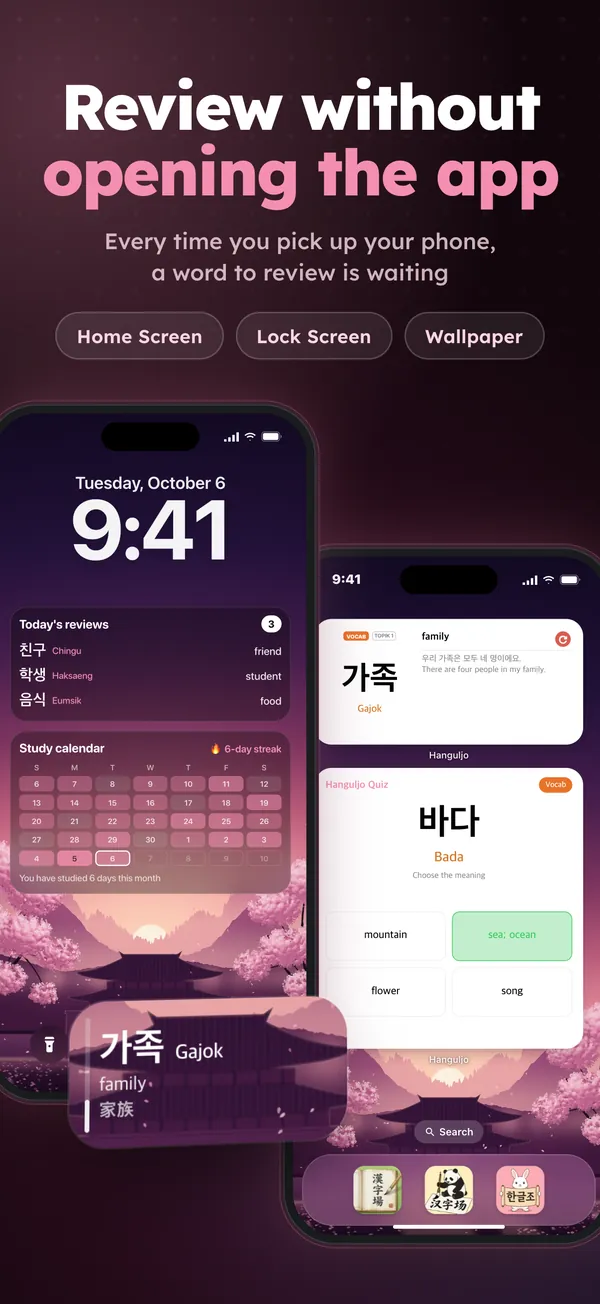
Three widgets, five places to put them
Hanguljo comes with three widgets. Hanguljo · Today sits on the Home Screen in the small or the medium size. Hanguljo Lock Screen goes under the clock as a rectangle, or above it as a single line of text. Hanguljo Quiz takes the large Home Screen size and asks a question with four answer buttons. You can use all three at once, for example a medium Today widget on your first page and the Quiz widget on the next.
Only the words you have already met
The widgets do not pick random dictionary words. They read your review list in the app: the vocabulary, grammar patterns and particles you have studied in lessons. Items with the lowest memory level come first, so the words you are most likely to forget are the ones you see most. Until you finish your first lesson, the widget simply asks you to study one.
What each size shows
The small Today widget shows the word in Hangul, its romanization, its meaning, a label for vocabulary, grammar or particle, and its TOPIK level. The medium size adds an example sentence with its translation. On the Lock Screen, the rectangle shows the word with its romanization and meaning, a memory-level bar along its left edge and, for Sino-Korean words, the Hanja they come from, such as 價格 for 가격. The inline style fits the word, its romanization and its meaning on one line.
A review question on your Home Screen
The Quiz widget turns a glance into a small test. It asks the same kinds of questions as the lesson quizzes: choose the meaning of a word, pick the polite present form of a verb, fill in the missing particle or tap words to put a sentence in order. You answer on the widget itself, see straight away whether you were right and move on to the next question. Your answers are added to your review schedule the next time you open Hanguljo.
How to add a Hanguljo widget
Widgets are added from iOS rather than from inside the app, and the steps match Apple’s own instructions for the Home Screen and the Lock Screen.
- Home Screen: touch and hold an empty area until the app icons jiggle, tap Edit in the top-left corner and choose Add Widget. Search for Hanguljo, swipe through the sizes (small, medium and then the large Quiz widget), tap Add Widget and finish with Done.
- Lock Screen: touch and hold the Lock Screen until Customize appears, tap it, choose the Lock Screen and tap the widget area below the clock. Pick Hanguljo and tap the rectangle. For the one-line style, tap the date above the clock instead and choose Hanguljo there.
On iOS 17 the Home Screen button is a + in the top-left corner instead of Edit; the other steps are the same. Inside the app, Settings has a page called “How to add widgets” with a screenshot of every step.
Choosing what the widgets show
Open Settings in Hanguljo and tap Widget settings. You can keep a mix of vocabulary and grammar or limit the widgets to one of them, choose what the Quiz widget asks about, and switch the widgets to dark mode. The changes appear the next time the widgets refresh.
On their own, the Today and Lock Screen widgets move to the next item about every 15 minutes; iOS decides the exact moment, so it can be a little later. On the Today widget, tap the circular arrow in the corner to move on straight away, or tap anywhere else to open the app. Words from a new lesson join the rotation the next time the app updates the widgets.
Widget or wallpaper?
This site also has a free Korean lock screen wallpaper maker, a different tool for a different situation. It draws the Hangul, romanization and meanings you choose onto an image in your browser. Because the result is just a picture, it works on any phone, Android included, and on an older iPhone that cannot run iOS 17. It never changes until you make a new one, and it knows nothing about what you have studied.
The widget is the opposite. It lives on an iPhone with iOS 17 or later, and its content comes from your own review list, so it changes as you learn and puts your weakest words first. If you use an Android phone, or you want a fixed set of words in front of you for a week, the wallpaper is the better fit; if you study in Hanguljo, the widget does the choosing for you.
What a glance can and cannot do
Seeing a word again and again keeps it familiar, and familiarity makes the next review faster. A glance is still not the same as recall, though. Memory grows when you try to produce the meaning before you see it, which is what the reviews in the app and the Quiz widget ask of you. Think of the Today and Lock Screen widgets as reminders that keep your vocabulary in view, and of the Quiz widget as a short review you can do without opening anything.
Set it up in four steps
- Install Hanguljo and finish your first lesson, so the widgets have something to show.
- Add the Today widget to your Home Screen and the rectangle to your Lock Screen.
- In Widget settings, choose vocabulary, grammar or a mix.
- Add the Quiz widget on a second Home Screen page for quick reviews.
Good to know
- Hanguljo runs on iPhone and iPad with iOS 16 or later; there is no Android version at the moment.
- The widgets themselves need iOS 17 or later.
- The widgets are part of the free plan; Premium is not needed to use them.
- Hanja review cards are not part of the widget rotation, but Sino-Korean words show their Hanja on the Lock Screen rectangle.
- iOS sets the exact refresh time, so a new item can arrive a few minutes later than expected.
Frequently asked questions
Is there a Hanguljo widget for Android?
No. Hanguljo is only available for iPhone and iPad at the moment. On an Android phone you can still put Korean words on your lock screen with the free Korean wallpaper maker on this site, which makes an image you set as your wallpaper.
Do I have to open the app for the widget to change?
No. The widgets move to a new item by themselves about every 15 minutes, and the circular arrow changes the word at once. You only need to open Hanguljo to add newly studied words to the rotation and to have your Quiz widget answers counted in your reviews.
Which iPhones can use the Hanguljo widgets?
Any iPhone that runs iOS 17 or later. The app itself installs from iOS 16, but the widgets need iOS 17. You can check your version in Settings, General, About.
Are the Hanguljo widgets free?
Yes. All three widgets are part of the free plan. Premium removes the daily lesson limit and the ads, but it is not needed for the widgets.
Can the widget show only grammar?
Yes. In Settings, under Widget settings, choose Grammar for grammar patterns and particles only, Vocab for words only, or Mixed for both. The Quiz widget has its own content setting.
Sources
- How to add and edit widgets on your iPhone, Apple Support
- Add, edit, and remove widgets on iPhone, iPhone User Guide, Apple Support
- Create a custom iPhone Lock Screen, iPhone User Guide, Apple Support
Try Hanguljo free
Free to download on iPhone. One Premium account unlocks Kanjijo, Hanzijo and Hanguljo.
Download on theApp Store On a computer?Scan with your iPhone
Learning more than Korean? Our sister apps use the same method - free:
日 Kanjijo: Learn Japanese JLPT中 Hanzijo: Learn Chinese HSK 1-9One Premium account unlocks all three apps.